Troubleshooting
Each section matches a step in Getting Started and a screen in the Companion App. Pick the problem you see from the list below.
Table of contents
- Can’t find your SmartSpin2k
- No power or cadence numbers
- The knob does not move
- The shifter works backwards
- Peloton data only during a ride
- Grupetto FTMS is not listed
- Calibration
- Factory reset
Can’t find your SmartSpin2k
Work through these checks in order when your SmartSpin2k does not appear on the scan screen.
- Check that the SmartSpin2k is powered on and within range of your phone.
- Turn your phone’s Bluetooth off and on, then tap SCAN again.
- Restart the SmartSpin2k. Unplug the power adapter, wait five seconds, and plug it back in.
- Close other apps connected to the SmartSpin2k. Each SmartSpin2k allows three app connections, including the Companion App.
- Reset SmartSpin2k with the shifter buttons. See Reset with the shifter.
- Ask in the SmartSpin2k Facebook group if your SmartSpin2k still does not appear.
No power or cadence numbers
Work through these checks in order when power or cadence stays at zero.
- Pedal for a few seconds. Your bike or power meter sleeps when idle and wakes when you pedal.
- Tap Settings on the Device screen, then Bluetooth, and confirm Saved Power Meter is not
none. SmartSpin2k ships with it set tonone. - Close any other app or device connected to your bike or power meter. Most sensors accept one connection at a time.
- Restart your bike or power meter. Then tap SCAN on Saved Power Meter, pick it from the list, and tap SAVE.
- Start a ride on a Peloton Bike in Tablet Mode. It sends data only during a ride. See Peloton data only during a ride.
- Turn on BLE TX in Grupetto if you ride a Bike+ with Grupetto. See Grupetto FTMS is not listed.
The knob does not move
Work through these checks in order when the knob stays still after a shift.
- Check that the power LED on the SmartSpin2k is lit.
- Seat the large breakout cable fully, with the arrows on both connectors lined up.
- Plug the wire labeled Shifter into the shifter.
- Tap Virtual Shifter on the Device screen, then tap Shift up and watch the knob.
- Seat the knob insert on the bike’s resistance knob.
- Latch the arm’s hook into the bike mount so the body cannot lift.
The Virtual Shifter screen shows a message when SmartSpin2k does not confirm a shift.
| Message | What to do |
|---|---|
| No cadence detected yet. Start pedaling and try again. | Pedal, then tap Shift up again. |
| SmartSpin2k disconnected before the shift was confirmed. | Reconnect from the scan screen. Tap SCAN, then CONNECT on your SmartSpin2k. |
| Homing is active. Wait for it to finish before shifting. | Wait for the knob to stop moving, then shift again. |
| The requested shift exceeds the upper travel limit. | Tap Shift down. The knob is at the top of its range. |
| The requested shift exceeds the lower travel limit. | Tap Shift up. The knob is at the bottom of its range. |
| SmartSpin2k did not confirm the requested shift. | Pedal, then shift again. |
The shifter works backwards
- Tap Settings on the Device screen.
- Tap Basic.
- Tap Swap Shifter Direction.
- Flip the switch.
- Tap SAVE.
Peloton data only during a ride
In Tablet Mode (side switch UP), the Peloton tablet requests the bike’s data, so the bike sends numbers only while a ride is running. Start a Just Ride in the Peloton app, or open the Grupetto overlay, before you check numbers. Headless Mode (side switch DOWN, Peloton Tablet cable unplugged) lets SmartSpin2k request the data itself.
See Peloton Bike (Original) to set up either mode.
Grupetto FTMS is not listed
Work through these checks in order when Grupetto FTMS does not appear after a scan.
- Open Grupetto on the Bike+ tablet.
- Turn on BLE TX in Grupetto’s settings.
- Disconnect Grupetto from any other app or device.
- Tap SCAN again and wait up to 20 seconds.
See Peloton Bike+ for the full Grupetto setup.
Calibration
Calibration is optional. SmartSpin2k rides fine without it. On a Bike+, calibrate only with Grupetto sending resistance. With power meter pedals alone, skip it.
For how it works and when to run it, see Calibration.
If Calibrate Trainer fails on a bike with end stops, adjust Homing Force and try again.
- Find Homing Force on the Calibrate Trainer screen, or under Settings, Advanced.
- Lower it by about 10 if the motor kept pushing at the end.
- Raise it by about 10 if the knob stopped before the end.
- Tap SAVE, then tap Try Again.
Factory reset
A factory reset puts every setting back to how SmartSpin2k shipped. Use it when settings are tangled and you want a clean start, or before you pass the SmartSpin2k to someone else.
The reset erases:
- The saved power meter and heart rate monitor.
- The WiFi network and password.
- Calibration and the power table.
- The device name and every setting under Basic and Advanced.
The firmware stays installed. Copies saved in the Companion App stay on your phone.
Save a copy first if you want your settings back later. Tap Settings on the Device screen, then Save & restore settings, then Save a copy.
Reset from the Companion App
- Connect to your SmartSpin2k.
- Tap Settings on the Device screen.
- Tap Save & restore settings.
- Tap Factory reset SmartSpin2k.
- Tap Reset SmartSpin2k.
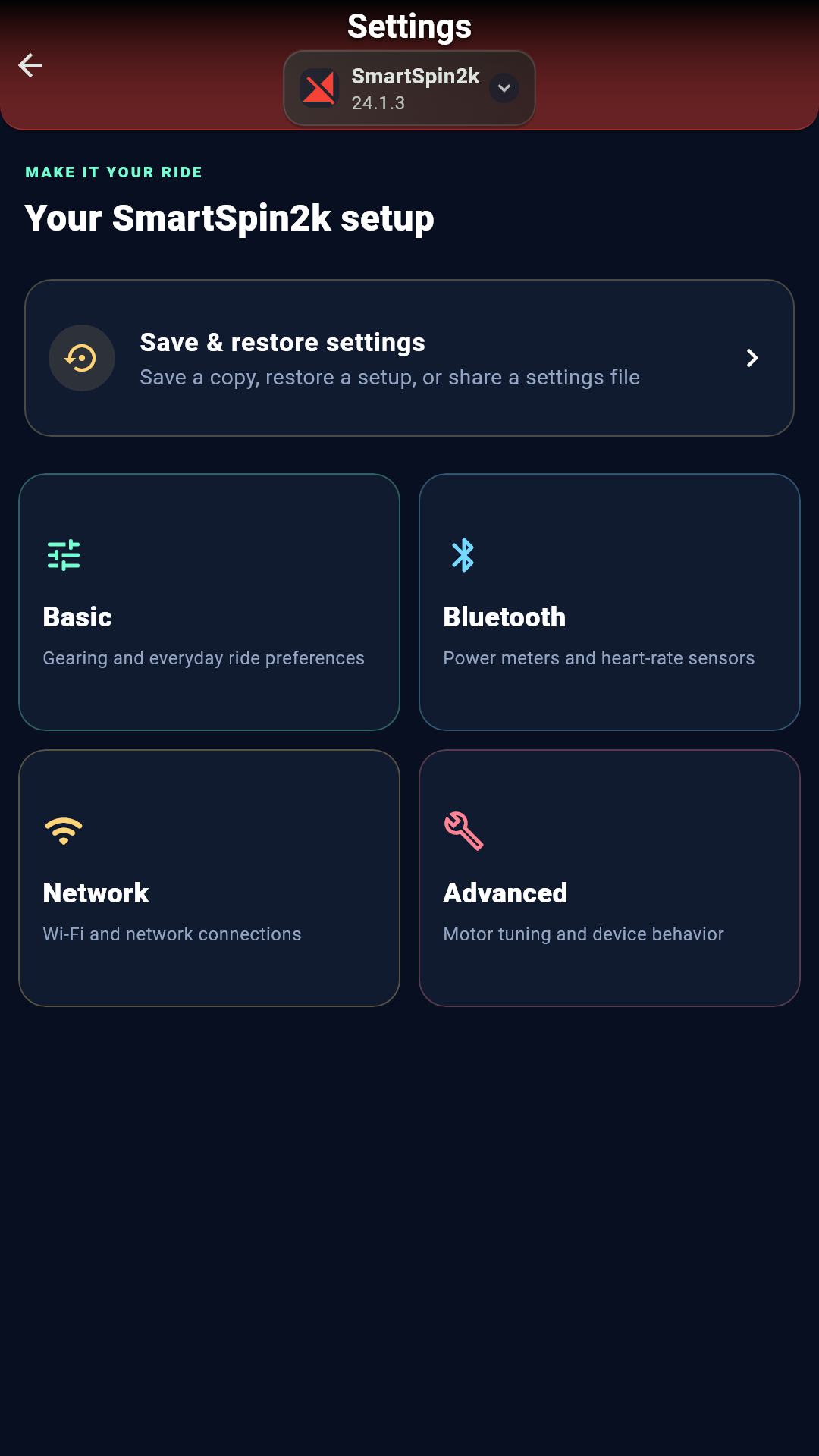
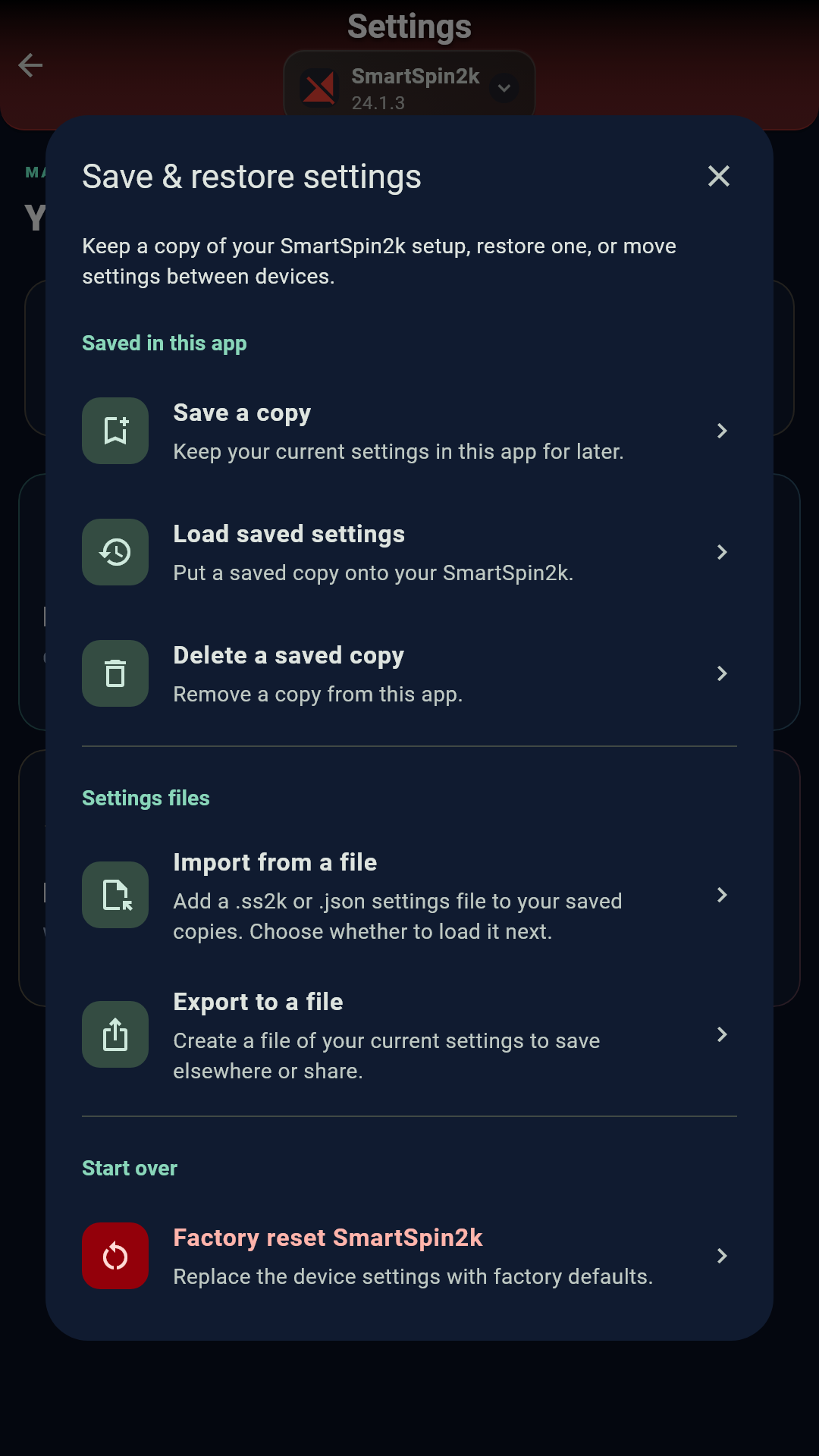
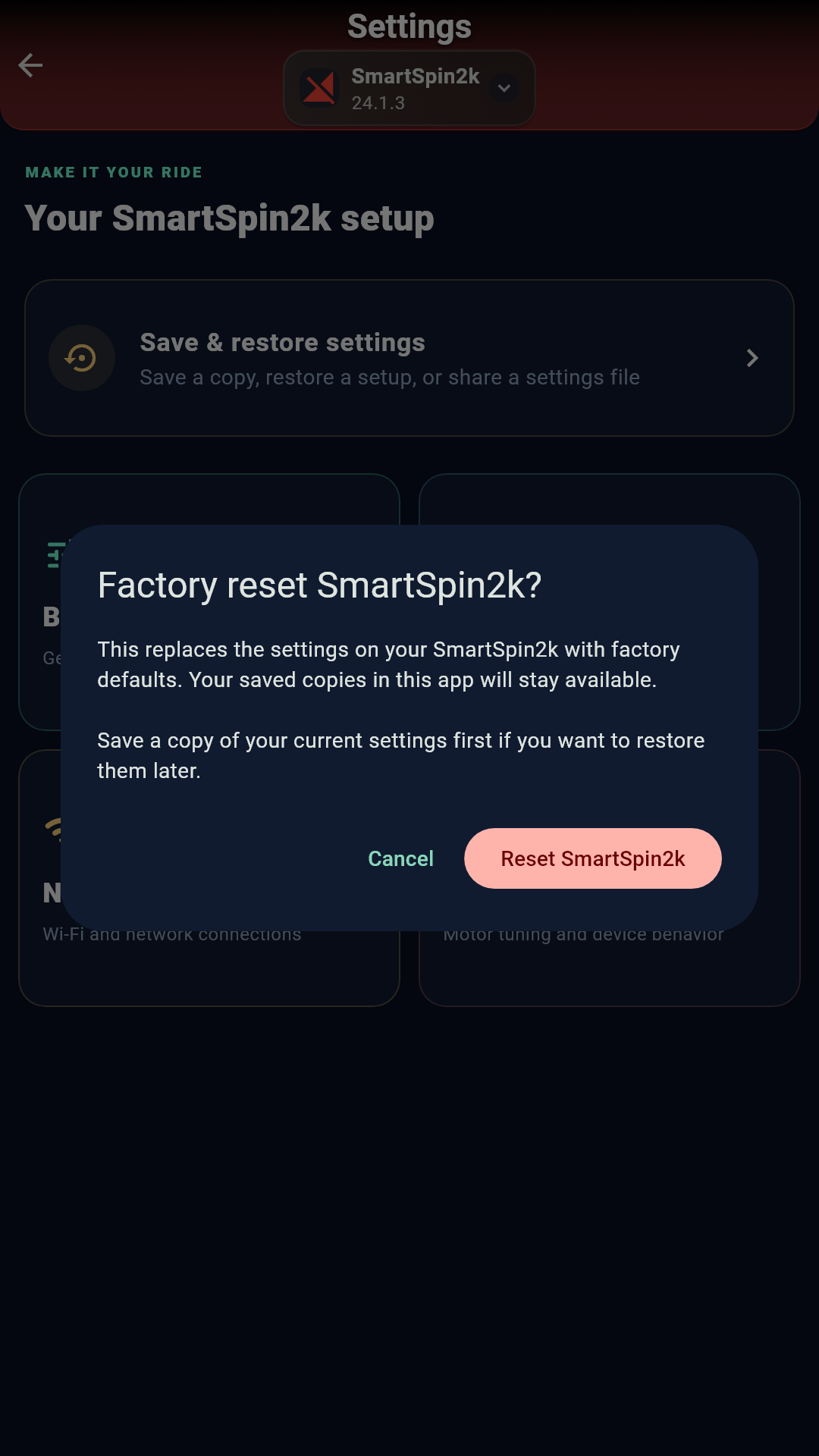
SmartSpin2k restarts by itself. The app reconnects and shows SmartSpin2k reset to factory settings.
Reset with the shifter
Use this when the Companion App cannot find or connect to your SmartSpin2k.
- Unplug the SmartSpin2k power adapter.
- Check that the shifter is plugged into the wire labeled Shifter.
- Press and hold both shifter buttons.
- Keep holding both buttons and plug the power adapter back in.
- Keep holding until the blue LED lights up, about five seconds after power on.
- Release both buttons.
- Wait about 30 seconds without unplugging. The LED goes dark while SmartSpin2k erases its settings, then SmartSpin2k restarts by itself.
The reset is done when the blue LED blinks slowly. If the LED never lit while you held the buttons, SmartSpin2k started normally. Unplug it and try again, and hold both buttons from before power on until the LED lights.
After a reset
- Tap SCAN in the Companion App, then CONNECT on your SmartSpin2k.
- Run Guided Setup, or follow Getting Started to pick your power meter again.
- To bring back your old settings, tap Settings, then Save & restore settings, then Load saved settings.
The web page at smartspin2k.local returns once SmartSpin2k is back on a WiFi network with internet access.