Firmware
There are two ways to put new firmware on SmartSpin2k. Use the Companion App for normal updates. Use the SmartSpin2k Flasher and a USB cable when the app can’t update it.
Table of contents
Update with the Companion App
Your settings and Power Table stay as they are. The app sends the firmware over WiFi when SmartSpin2k is on your network, and over Bluetooth when it isn’t.
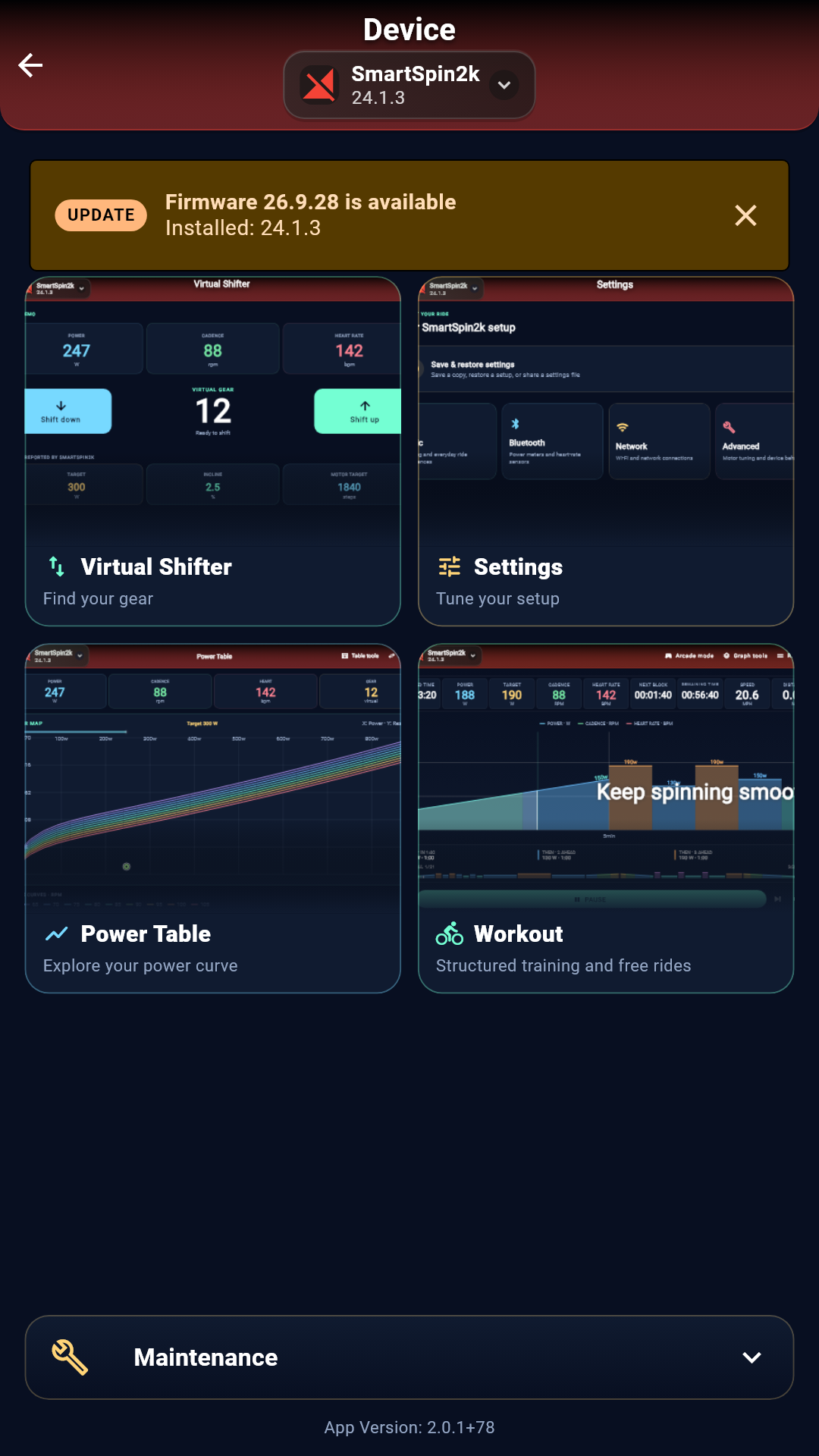
When a newer release is out, the Device screen shows Firmware version is available. Tap it to open Firmware Update.
No banner? Tap Maintenance, then Update Firmware. Tap X to hide the banner until the next release.
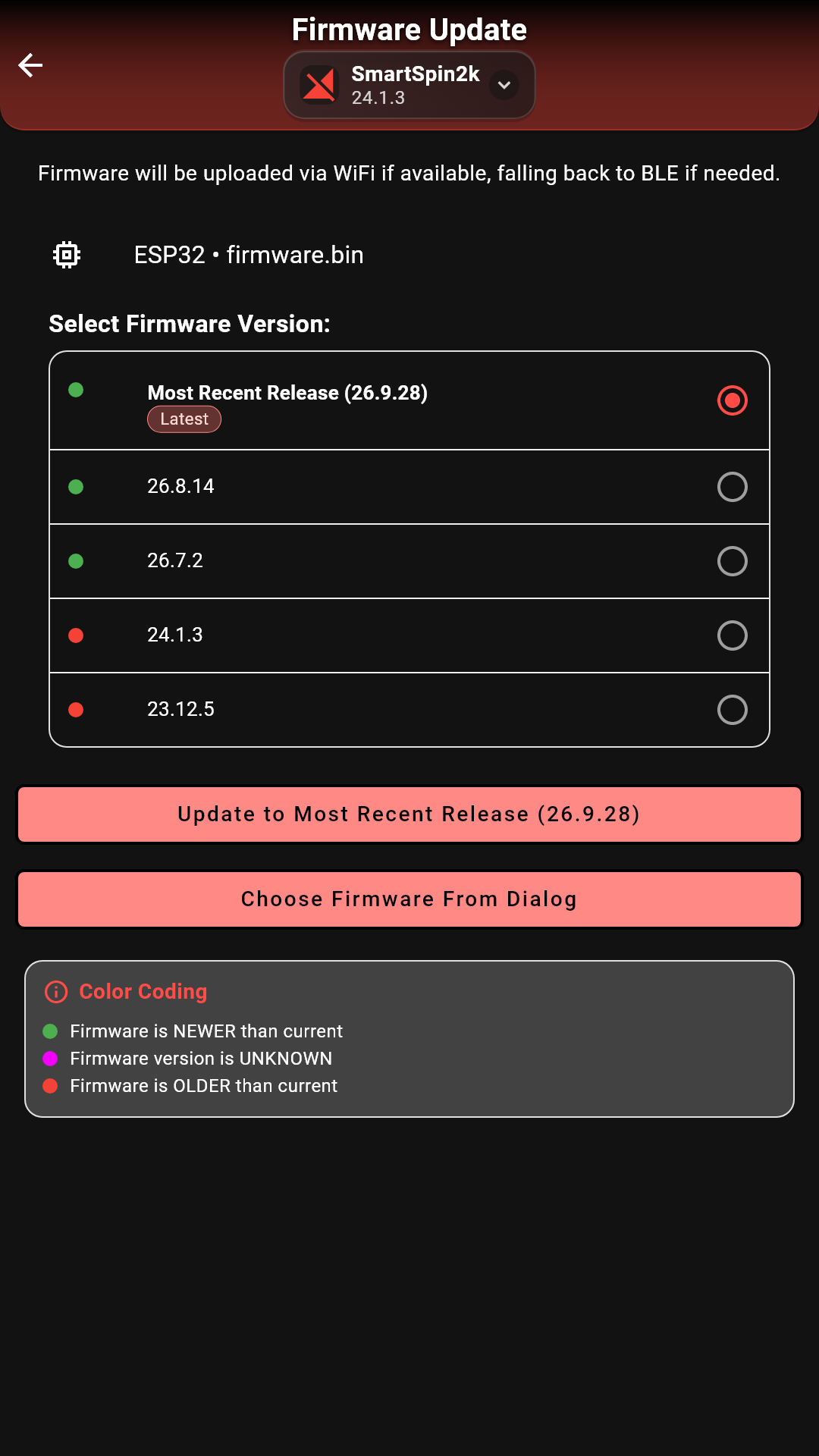
The newest release is selected and marked Latest. A green dot means the release is newer than what SmartSpin2k has now. Red means it’s older.
Tap Update to Most Recent Release, then Confirm.
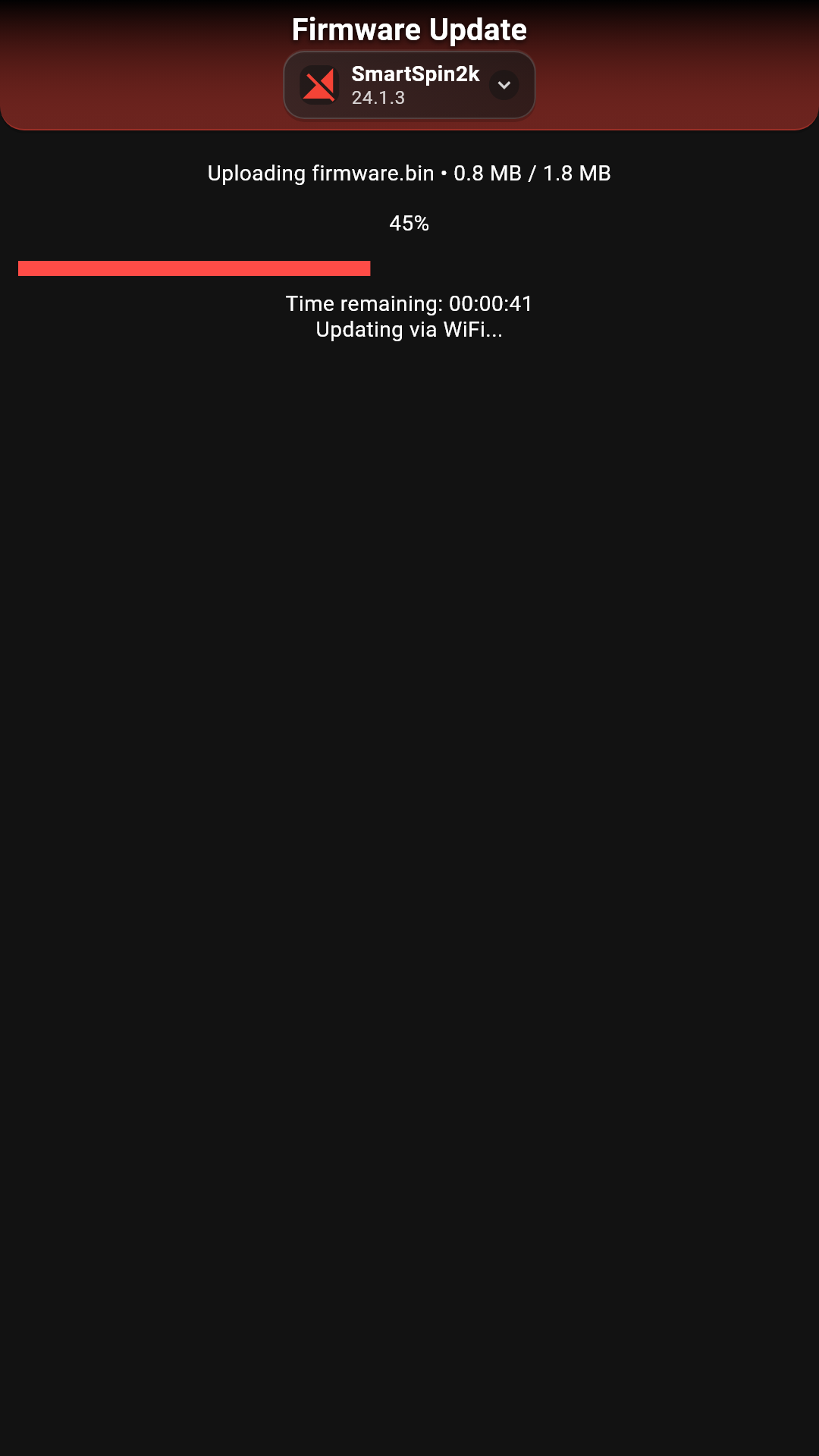
Stay on this screen until it finishes. Over Bluetooth it can take up to five minutes.
SmartSpin2k restarts on its own when the update is done, and the app checks the new version.
If the update stops partway: unplug SmartSpin2k’s power, plug it back in, and try again.
If the app says the firmware isn’t compatible: that SmartSpin2k is too old for the app to update. Use the Flasher once, and the app can handle updates after that.
Update over USB
The SmartSpin2k Flasher puts a fresh copy of the newest firmware on SmartSpin2k. It picks the right firmware for your board and downloads it for you. Use it when:
- the Companion App can’t update SmartSpin2k
- SmartSpin2k won’t start or connect after a failed update
Flashing over USB erases SmartSpin2k. Your settings, saved sensors, calibration and the Power Table all go back to factory defaults. If the Companion App can still connect, save a copy first: Settings, then Save & restore settings, then Save a copy.
What you need
- A USB cable that fits your SmartSpin2k. Newer units have a USB-C port. Older units have micro-USB. It has to be a data cable. Some cables only charge, and the Flasher won’t see SmartSpin2k through them.
- A Windows, Mac or Linux computer.
-
SmartSpin2k Flasher. Download the file for your computer:
windows-setup.exefor Windows,.dmgfor Mac,linux.tar.gzfor Linux.
You don’t need SmartSpin2k’s power cable for this. USB powers it.
Flash SmartSpin2k
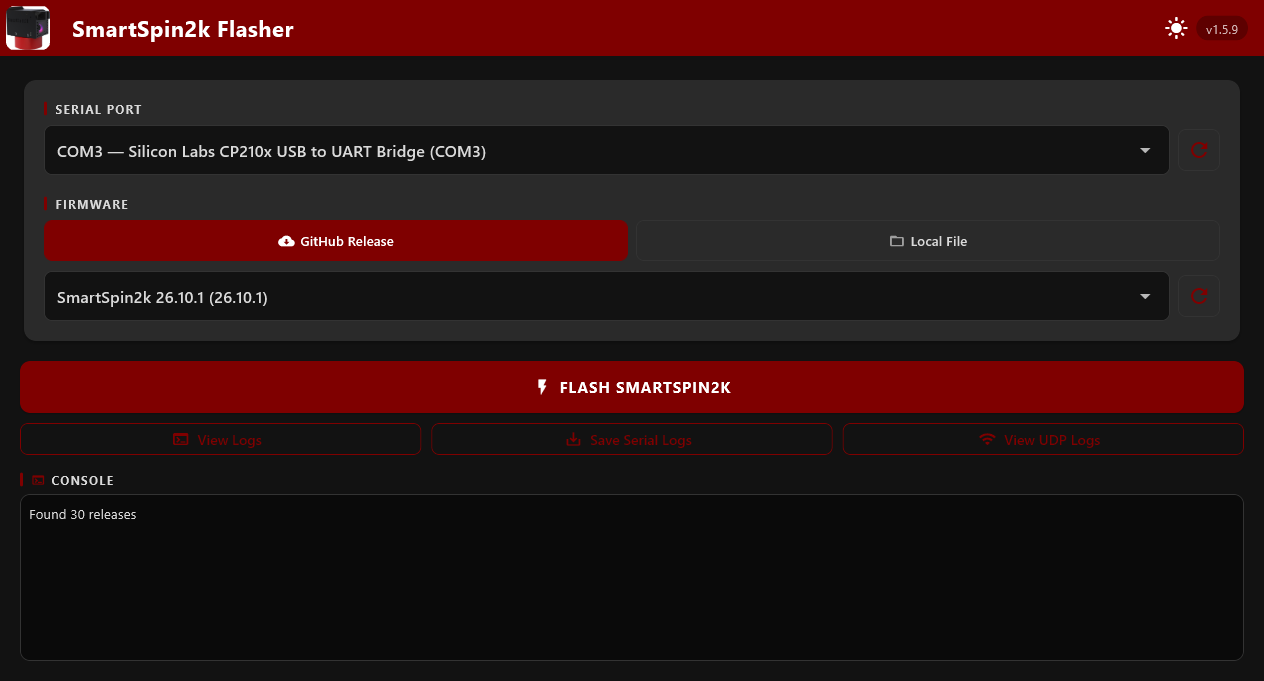
Plug the USB cable into SmartSpin2k and your computer, then open the SmartSpin2k Flasher.
Under Serial Port, pick your SmartSpin2k. If the list is empty, click the refresh button next to it.
Under Firmware, leave GitHub Release selected. The newest release is already chosen.
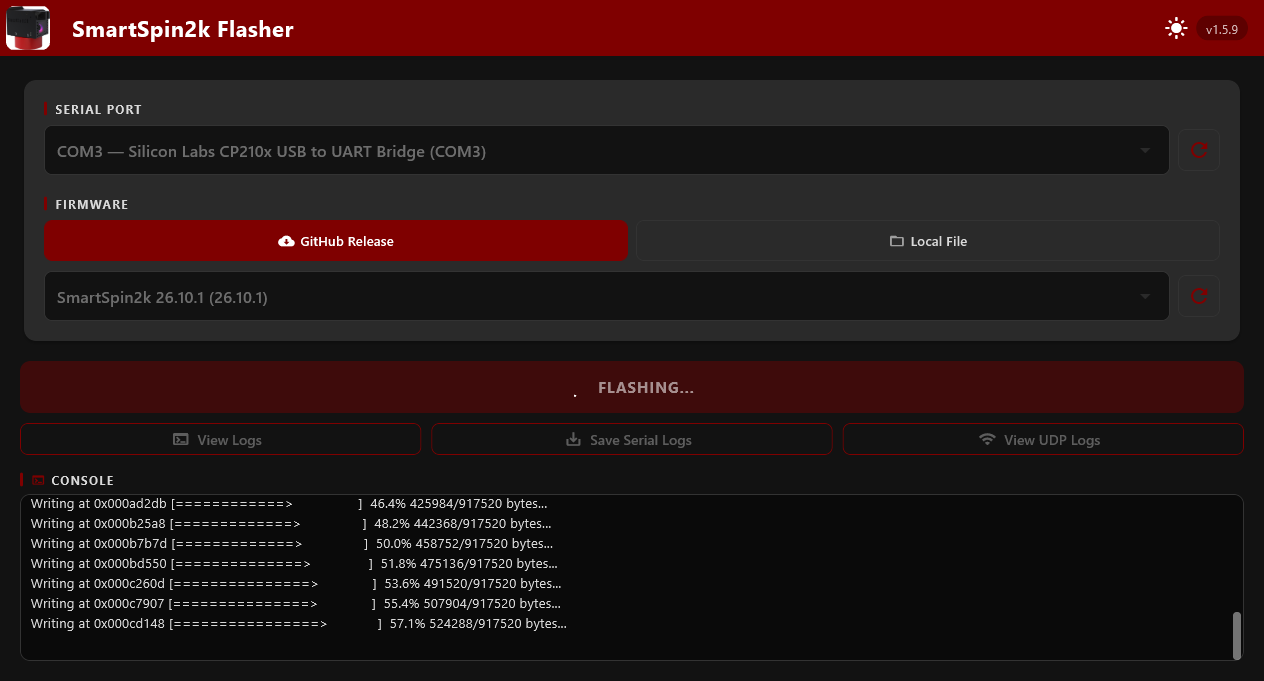
Click Flash SmartSpin2k. The Flasher checks which board you have, downloads the firmware, and writes it. This takes under a minute. Leave the cable plugged in until it’s done.
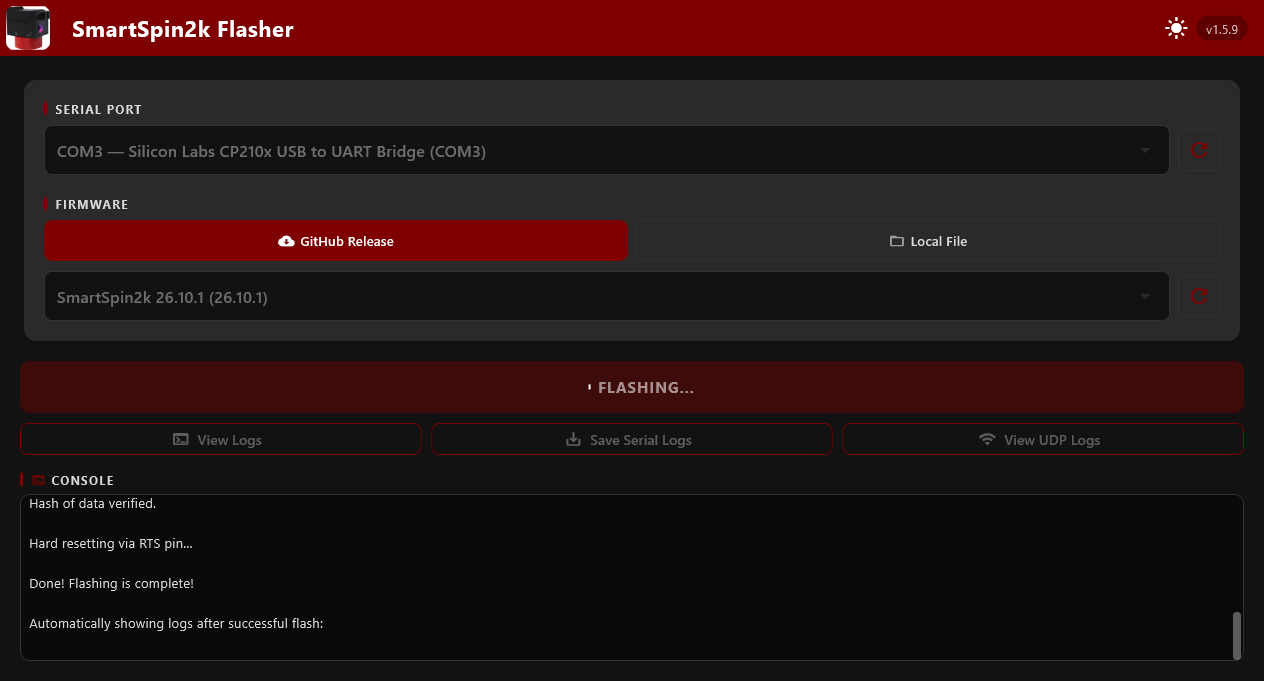
The console shows Done! Flashing is complete! SmartSpin2k restarts, and the Flasher shows its log as it starts.
Close the Flasher and unplug the cable. Connect with the Companion App, then restore your saved copy from Save & restore settings, or run Guided Setup to set it up again.
If the Flasher can’t connect
- SmartSpin2k isn’t in the Serial Port list: try a different cable, since charge-only cables are common. Then try a different USB port and click refresh.
- Flashing stops with a connection error: unplug the USB cable. Hold the boot button on SmartSpin2k’s board while you plug it back in, then click Flash SmartSpin2k again.
- Something else: click Save Serial Logs to save SmartSpin2k’s log to a file, and share it when you ask for help.